On laneiqbowling.com choose Start a League, then sign in with Google, Yahoo or your email.
Name the league, say where it bowls, and press Start the free trial. You are its League Manager.
The Dashboard shows Getting Started: the steps to set the league up, ticked off as you do them.
Everything works for 30 days with no card. Settings → Plan & Billing shows the days left.
Set Your League's Rules
For: League Manager and League Admins
Open Settings (the gear at the top right) and find League rules.
Set the season, the handicap base and percent, and how many games a new bowler needs before Bowler of the Week.
Under What this league uses, turn on Scholarship money if your league pays it. Then set the weekly amount and the Bowler of the Week pot under League rules.
Changing a rule recalculates every week, so you can adjust it mid-season.
Add Your Bowlers
For: League Manager, League Admins and Coaches
Open Bowlers and press + Add bowler for each one.
Or skip that: when you bring in the first score file, LaneIQ lists every name in it and New bowler… adds each one right there.
Family email addresses go under Bowlers → ✉ Family emails. Only the league's staff see them.
Bring In a Week's Scores
For: League Manager, League Admins and Coaches
Press + Add Scores, then Choose score file… (or drag the file onto the page). It reads the file your center's scoring system saves: CSV, text or Excel.
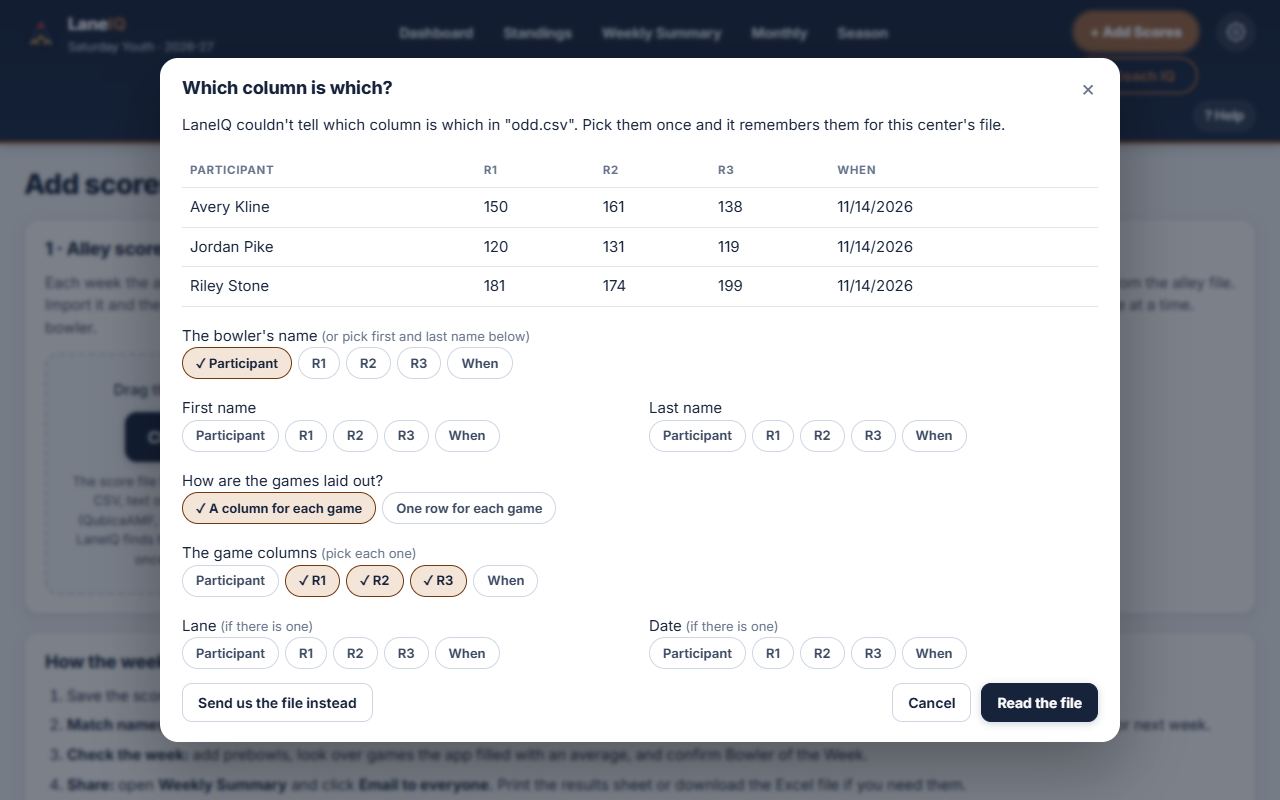
If LaneIQ asks Which column is which?, pick the name and the game columns once. It remembers them for your center's file.
On Match names, confirm each name typed at the lanes against your bowlers. LaneIQ remembers nicknames for next week.
Press Save scores →. Averages, handicap, highs and awards update for everyone at once.
No file this week? Use Photo of a printout or Type scores in on the same page.
Set Up Teams and Standings
For: League Manager and League Admins
Turn on Teams & Standings under Settings → What this league uses, or pick In teams when you start the league.
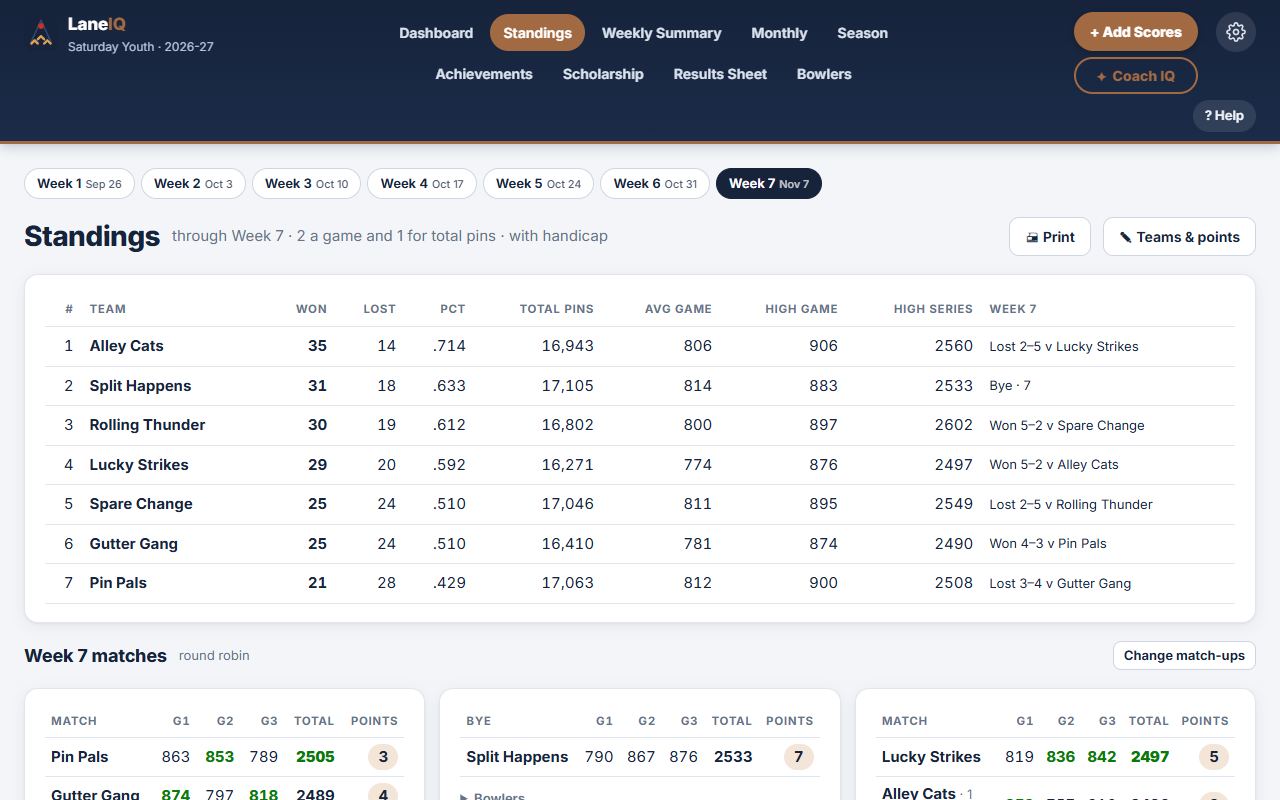
Open Standings and press ✎ Make the teams. Teams of 4 deals every bowler into evenly matched teams by average. Then rename the teams and move anyone.
Under Points, pick how a match is scored: 4, 7 or 8 points, with handicap or scratch.
Each week LaneIQ pairs the teams in a round robin. Change match-ups sets a week's pairings yourself.
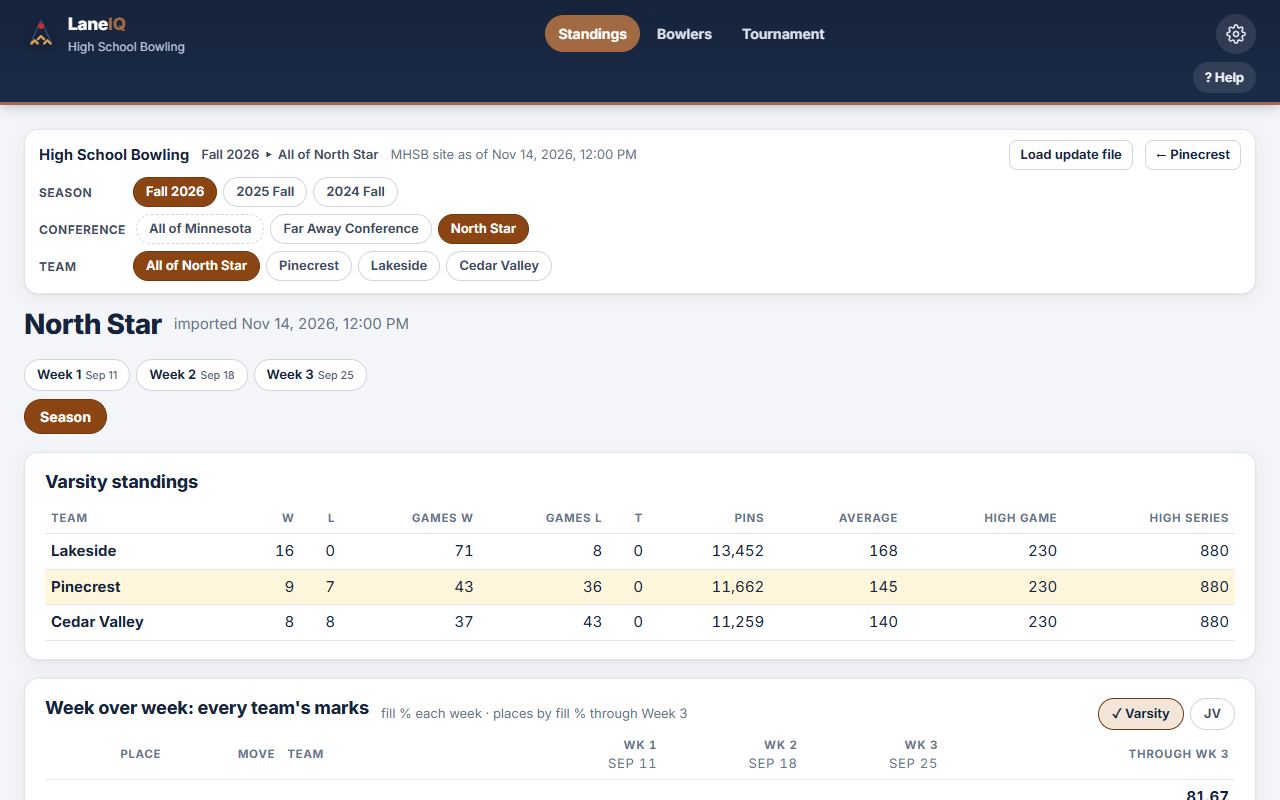
When a week's scores are saved, Standings shows points won and lost, total pins, and every match game by game.
Invite Coaches, Bowlers and Families
For: League Manager and League Admins
Open Settings → Manage people.
Add someone by email and pick their role. They are in the league as soon as they sign in with that address.
Or send Bowlers and Families the Invite link. Whoever signs in through it joins as a Viewer / Bowler.
Change anyone's role under Who's in the league. League Admins do everything except change the League Manager; Coaches add scores and photos; Viewers look and change nothing.
Send the Weekly Summary
For: League Manager, League Admins and Coaches
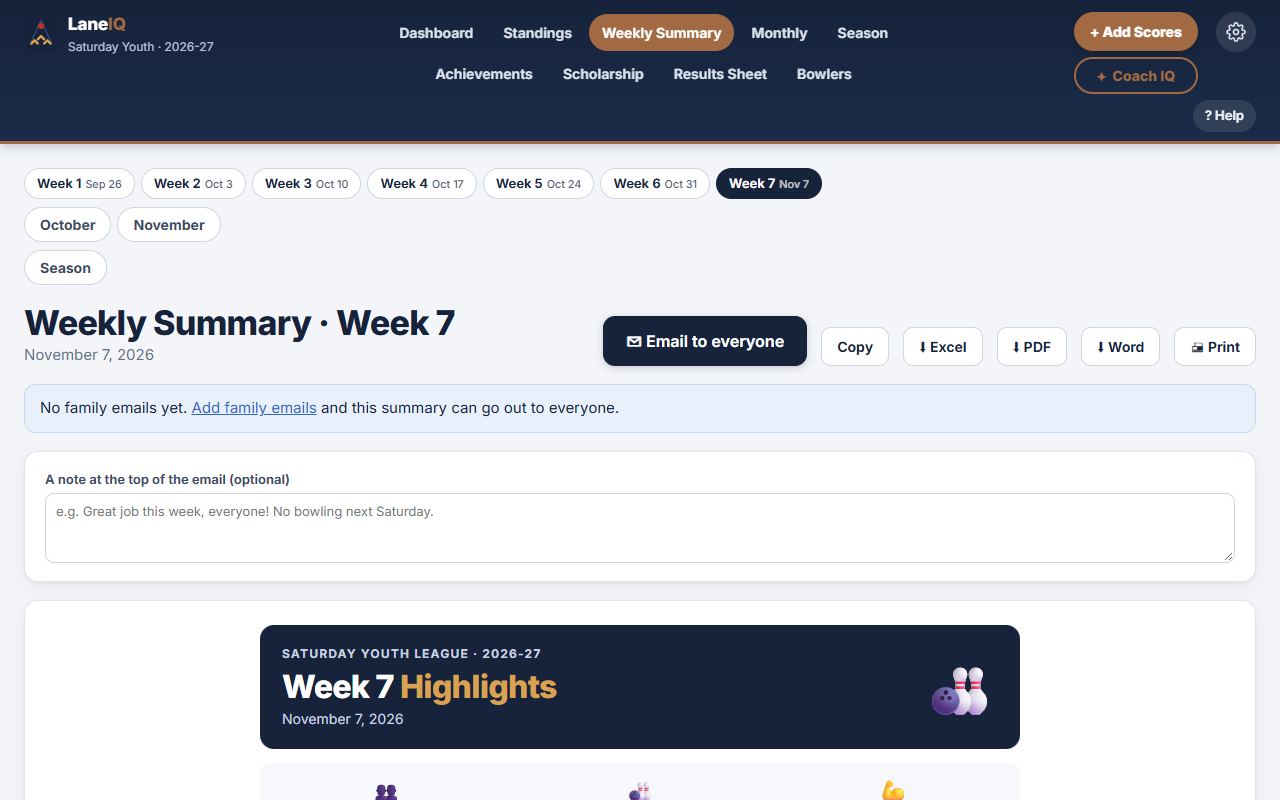
Open Weekly Summary for the week you just saved.
Press ✉ Email to everyone, paste the summary into the email, and send.
The same page saves it as Excel, PDF or Word, or prints it.
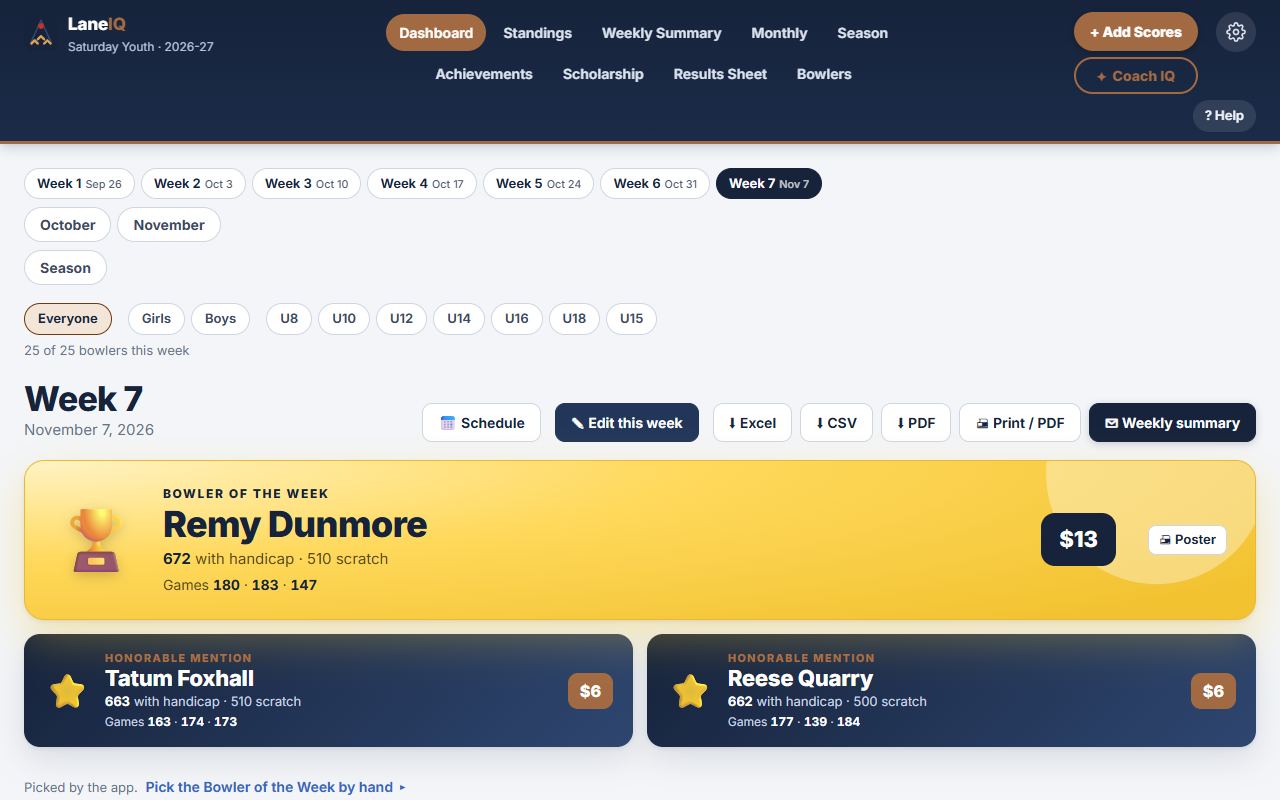
On the Dashboard, Poster prints the Bowler of the Week for the wall.
Run the Check-In Desk
For: League Manager, League Admins and Coaches
Open Check-In. The League Manager or a League Admin presses Start the desk once.
Under Set-Up, set the weekly fee and how much of it goes to the bowling center.
On league day, check each bowler in and mark how they paid: cash, check or Venmo. Two people can check in at once.
Finances adds up the day: what came in, what the center is owed, and the cash for the envelope.
Coach with Coach IQ
For: League Manager, League Admins and Coaches
Open Coach IQ (under + Add Scores). Families never see this page.
It keeps a coaching plan for every bowler, practice groups, a weekly check-in and your notes.
A bowler's own page (open Bowlers and click a name) shows their week by week, their highs and their badges.
Post the Schedule
For: League Manager, League Admins and Coaches
On the Dashboard press 📅 Schedule, then ✎ Make the schedule.
Press + Add a date for each bowling week, tournament, week off and banquet.
Save it. Everyone in the league sees it, and can click a date for its details.
Plan & Billing
For: League Manager and League Admins
Open Settings → Plan & Billing. It shows your plan and, on a trial, the days left.
Pick a plan to pay by card. Manage Billing has your invoices and your card.
A youth league can ask for the free youth pass there.
If a trial ends unpaid the league turns read-only: everyone still sees everything, nothing is deleted, and it opens again once it is paid.
Keep Your Own Copy
For: League Manager and League Admins
Open Settings and press ⬇ Download backup file now and then.
⬇ Every game this season (CSV) gives you every score for a spreadsheet.
For Bowlers and Families
For: Viewers / Bowlers
Open the invite link your coach sent and sign in. Sign in the same way each time, so you land in your league.
The Dashboard has each week's highlights. Bowlers has every bowler's page: averages, highs and badges.
On a phone, add LaneIQ to your home screen (the browser's Share or menu button) and it opens like an app.
You can share photos from league day. A coach approves them before everyone sees them.
High School Teams
For a high school team: its Coaches, Bowlers and Families.